

4. Placing an Order
Products can be selected from the online electronic catalogue either based on the vehicle type (VIN) or independently of it. The number of line items in your cart is shown by the small green number above the red cart icon in the main menu bar.
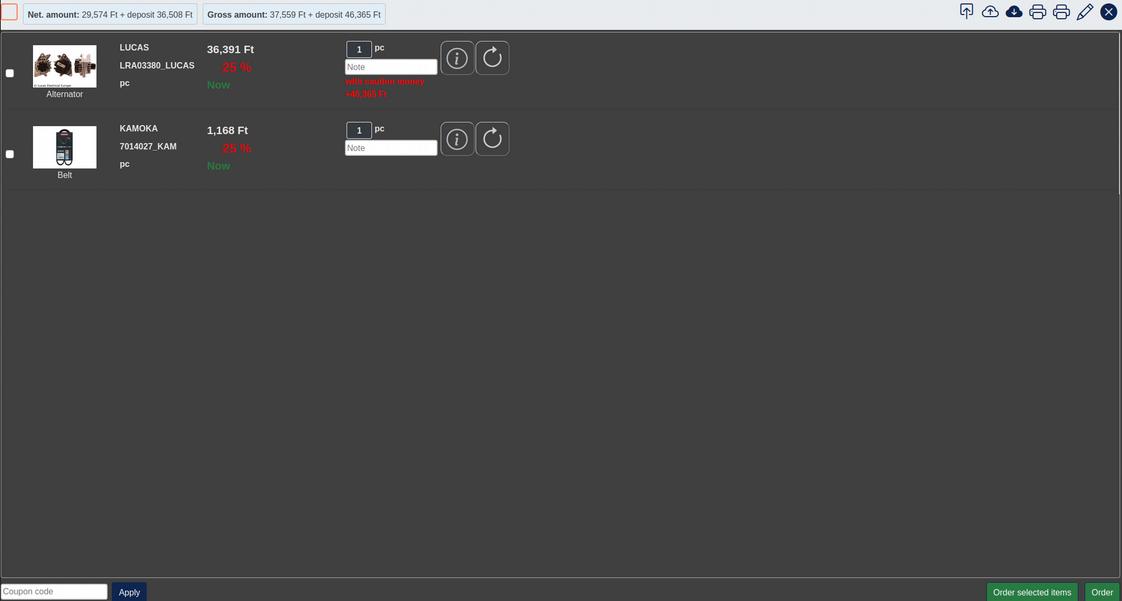
In the cart, the net and gross order total is shown in the top right corner (at the bottom on mobile), the items are in the middle, and at the bottom you will find the "Change shipping method/address", "Order selected products" and "Order products" buttons. Of the last two, "Order selected products" orders only the items ticked in the left-hand column, while "Order products" sends every item in the cart as an order.
You can save the contents of your cart to the cloud and load them back later (up / down icons). This is useful if you are not sure how urgent the order is but do not want to repeat the part selection process. In this case it is a good idea to save the cart with a descriptive note as a reminder, so you can find it again later – even weeks later. After loading it, we will immediately notify you of any changes since then (e.g. price changes), so you can still decide whether to order the loaded cart contents.
To delete items from the cart, tick them individually (small tick box on the left of each line), then use the "X" in a circle button. You can also add a note to the whole cart and print its contents. The circular (refresh) icon brings the cart up to date in a single click.
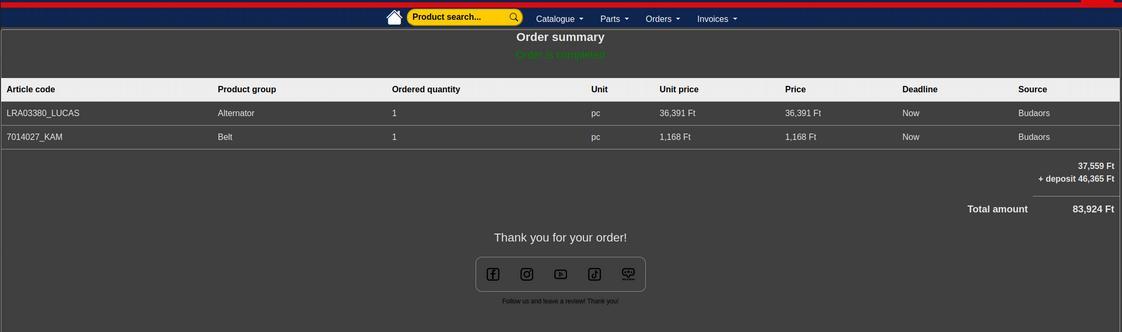
After a successful order you will receive a confirmation e-mail and an on-screen summary::