



Guide to the webshop operated
by Szakál Met-Al LTD.
User Guide
(This description may differ from the webshop after later changes – we do our best to keep it updated)
You do not need to register to use Szakal Metal webshop. However, registering is well worth it, as it not only makes the webshop more convenient to use but also gives you access to additional services, including:
- online ordering
- display of our discounts
- premium services, such as 'VIN search'
Appearance:
(you can select Light / Dark theme using the button near the Sun / Moon icon on the top - we stick with Dark for this guide)
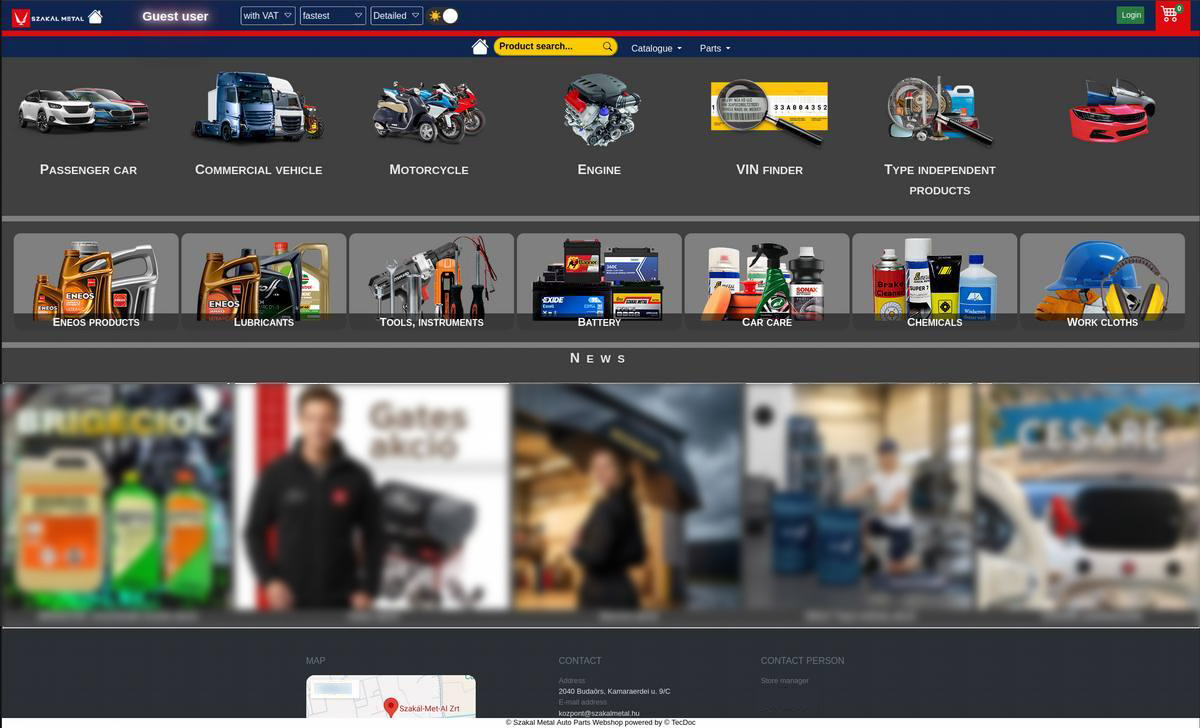
PC (Desktop )
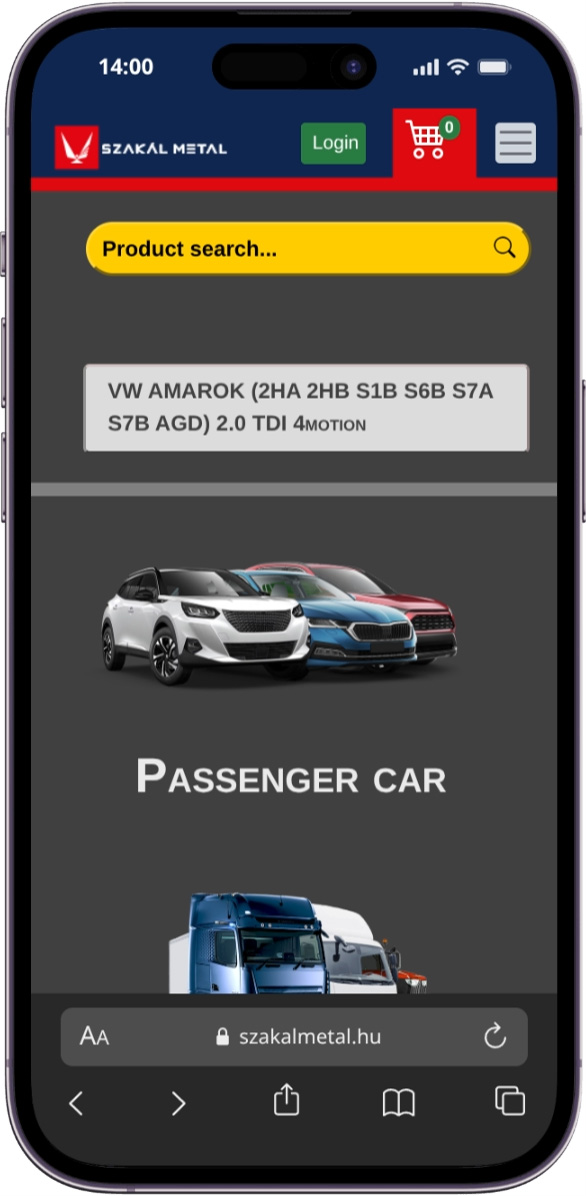
1. Login, Registration
If you are not registered yet, click the "Login" button in the top right corner of the screen, then click "Registration" in the "Webshop login" window that pops up.
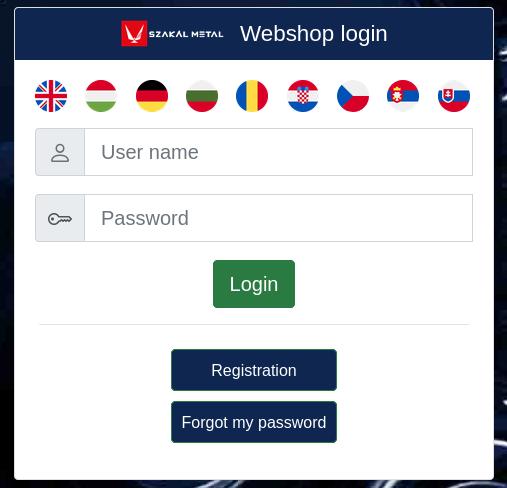
Once you have filled in the required details, your registration is created and you can log in.
If you already have a user account from our previous webshop (the version before 2023), you can log in with the same username and password. If you have an account from the previous webshop but have forgotten your password, you can request a new password for the new webshop.
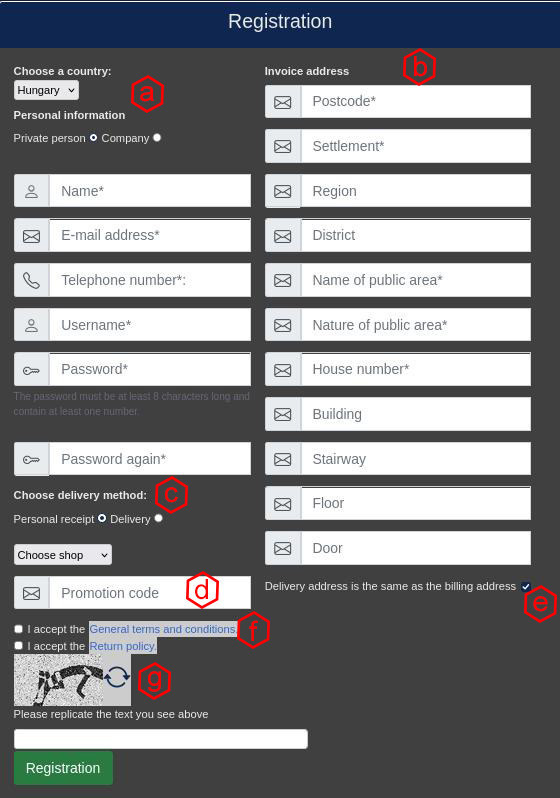
(a.) Personal details: enter the basic required details here. If you are not registering as a private individual, the Tax number must also be filled in – without it, the registration will not be created!
(b.) Billing address: invoices issued after your purchases will be made out to this address. If your Shipping address is different, untick the box and enter the shipping address details in the additional panel that opens.
(c.) Personal pickup or Delivery: here you can choose whether you will collect your order in person at a Szakál Metal branch selected from a pop-up window, or request delivery. Delivery may involve an additional charge, which is shown when you make your selection.
(d.) Promotion code: also known as a "Coupon code". If you have a coupon code from one of our periodic discount campaigns that you have not yet used, you can enter it here during registration.
(f.) Terms of use: confirmation that you accept the terms, which is mandatory for registration. You can read the terms by clicking the link. By ticking the box, you declare that you have read and understood the Terms of use, and that you are aware of the conditions of use and the warranty conditions.
(g.) Verification code: this protects against automated bots. Type the numbers / letters shown into the empty field. If you cannot read the code clearly, click the button with the circular arrows to generate a new one – you can do this as many times as you like, until you get a combination you can read properly.
Once you have filled in all the required details (a warning message will tell you if anything is missing), confirm your registration with the green Registration button. You will then receive an e-mail asking you to confirm your registration. After confirming it, you can log in with the details you provided and add products to your cart as a fully registered user.
Amenyniben minden szükséges adatot kitöltött (melyekről hiányzó létük esetén figyelmeztető üzenet tájékoztat), a regisztrációt a Regisztráció zöld gombbal hitelesítheti.
Ezt követően, egy egy regisztrációt megerősítő Emailt kap, majd miután azt is elfogadta, a megadott paraméterekkel beléphet és akár kosárba is helyezhet árut, teljes értékű, regisztrált felhasználóként.
ATTENTION!
Especially if you registered with an @hotmail or @outlook e-mail address, please also check your Junk e-mail (Spam) folder!
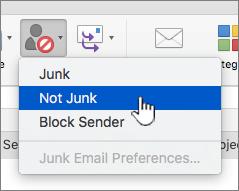
If you find the registration e-mail there, we recommend clicking the Not junk (Not spam) button
(The link in the e-mail still works even from the junk folder, but Microsoft will show a warning asking whether you really want to visit that URL...)

2. Selecting products
You can select products from the "Catalogue" menu based on the vehicle type (car, truck or motorcycle type / model) or by its VIN, or independently of these from the "Parts" menu – for example by item number or OE number, which you can type into the yellow input field.
Using "Catalogue" menu:
B. Search by Typer ( model )
- Cars

When searching for passenger cars by type ( model ), you can find the car relevant to you using all available vehicle parameters..
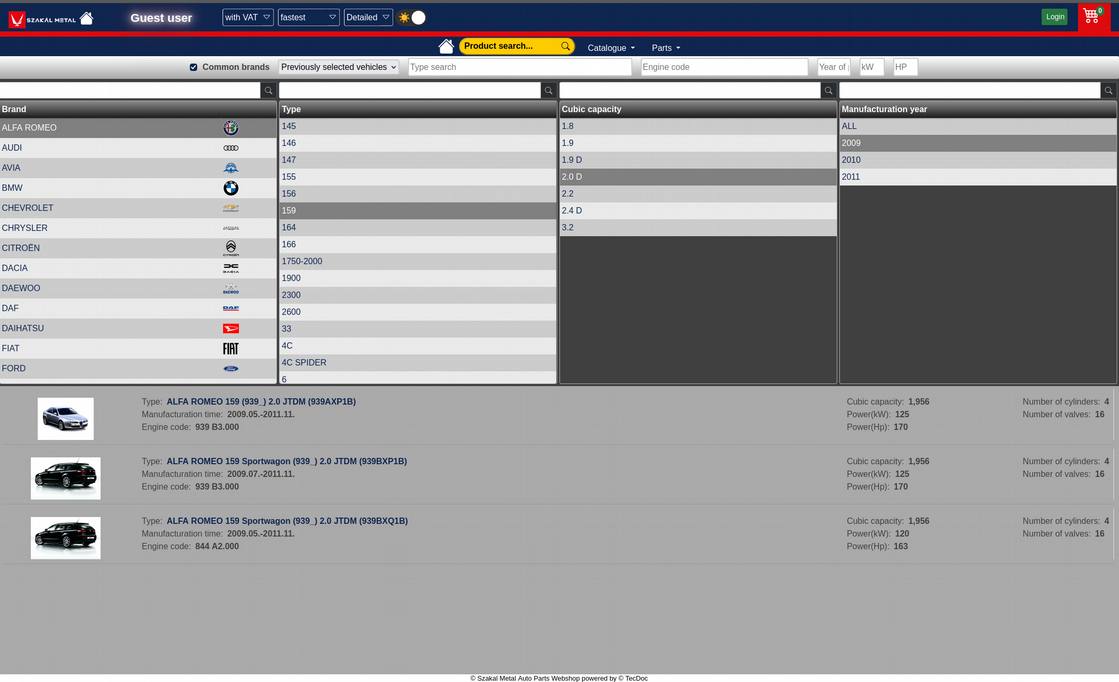
In addition to the classic Make, Type (model), Engine capacity (cc) and Year, you can narrow the search by typing into the "Type search" field, e.g. "STI" or "Fabia". You can also narrow it by engine code, e.g. "A5000", by year, or by power by entering "KW" or "HP" (horsepower). Narrowing is not required – it is an additional feature.
You can filter further using the input fields above the displayed lists (in the row with the magnifying glass icon) to make the search unambiguous. By unticking "Common models" you can browse even more – practically all – types / models. "Previously selected vehicles" is an automatically generated list of the vehicles you searched for most recently, so you can find them again easily later.
- Trucks,

For trucks, the same search options described above for cars are available.
- Motorcycles
For motorcycles, the same search options described above for cars are available.
C. Search by VIN
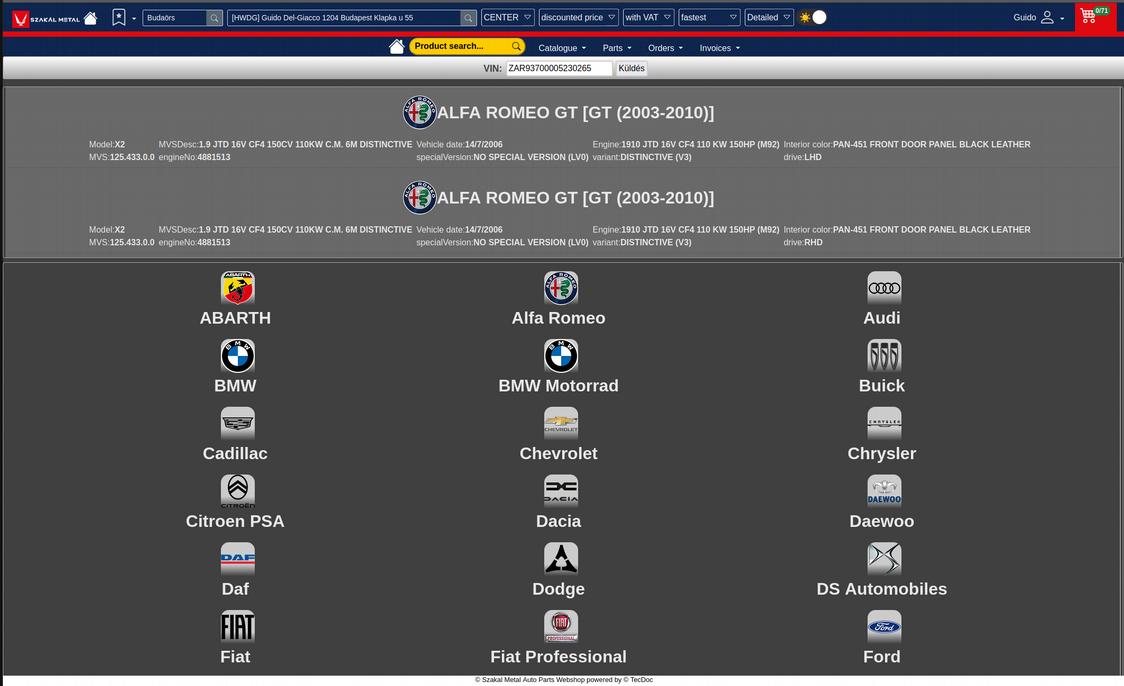
In the VIN search (a premium service available to registered users only) you can enter a specific VIN directly, e.g. "ZAR9370000523...", or choose from the type search system if you do not know the VIN of the vehicle
E. Selecting universal (non-vehicle-specific) products
Selecting universal products is like skipping the steps of the type / model search and starting directly at the product selection window, which looks like this:
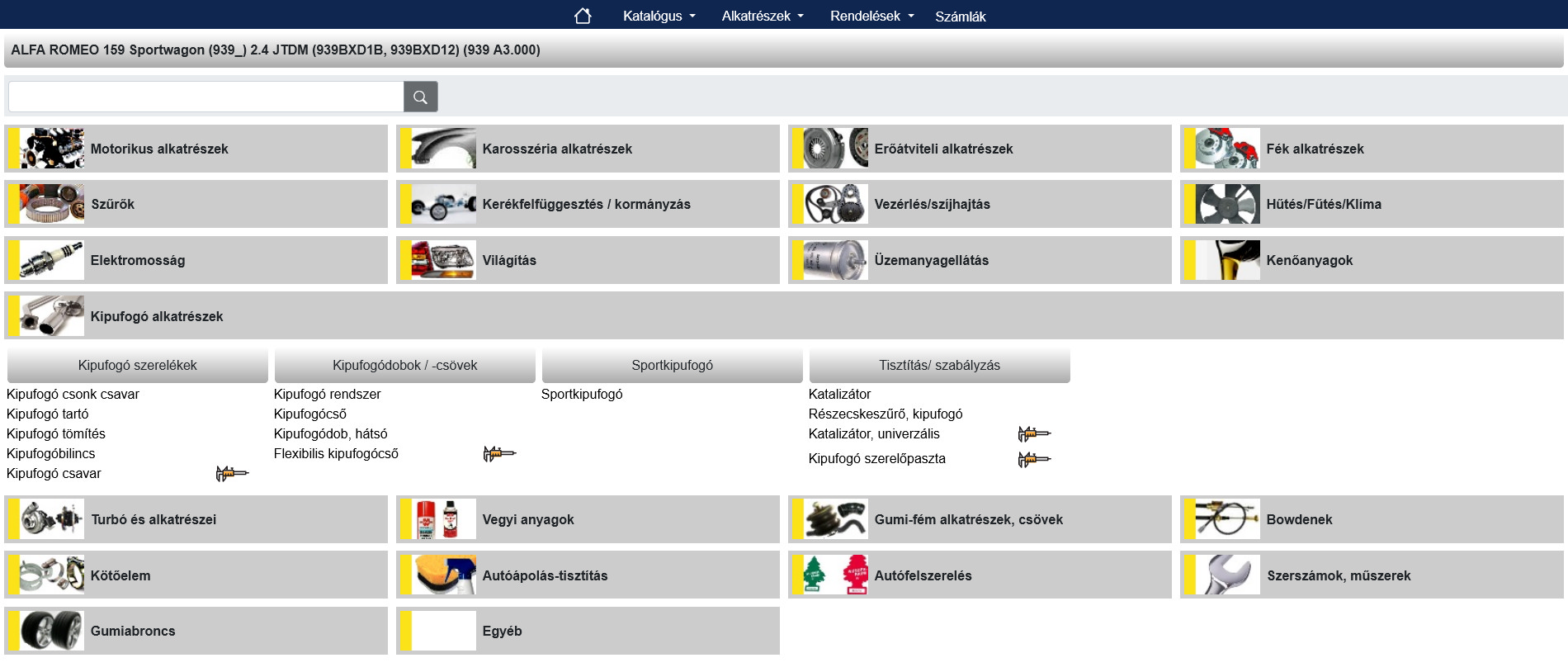
When choosing from the product groups, you can narrow the list straight away – though this is optional – using the input field in the top left corner, e.g. "Exhaust". A drop-down list will then show all products whose name contains "exhaust", ready to select. The product groups can be expanded and collapsed if you prefer to browse for car parts by category.
In some cases a caliper icon is shown: this means there is no direct link to the previously selected type / model, but a usable part may be found based on its dimensions – a pop-up window will inform you about this after you make your selection.
Next comes "Adding Products to the Cart" (Chapter 3)
Using "Parts" menu:
- Search by OE (Original Equipment) number, or item number
Type the OE (original) number or item number of the car part you are looking for into the yellow input field to find the product and its alternatives. Example: "50509843". You can then narrow the list of results further using the filters on the left.
The double-headed arrow button on the left changes the screen layout, and the blue "Show all technical information" button shows or hides all the data in the list that can help you make your decision.
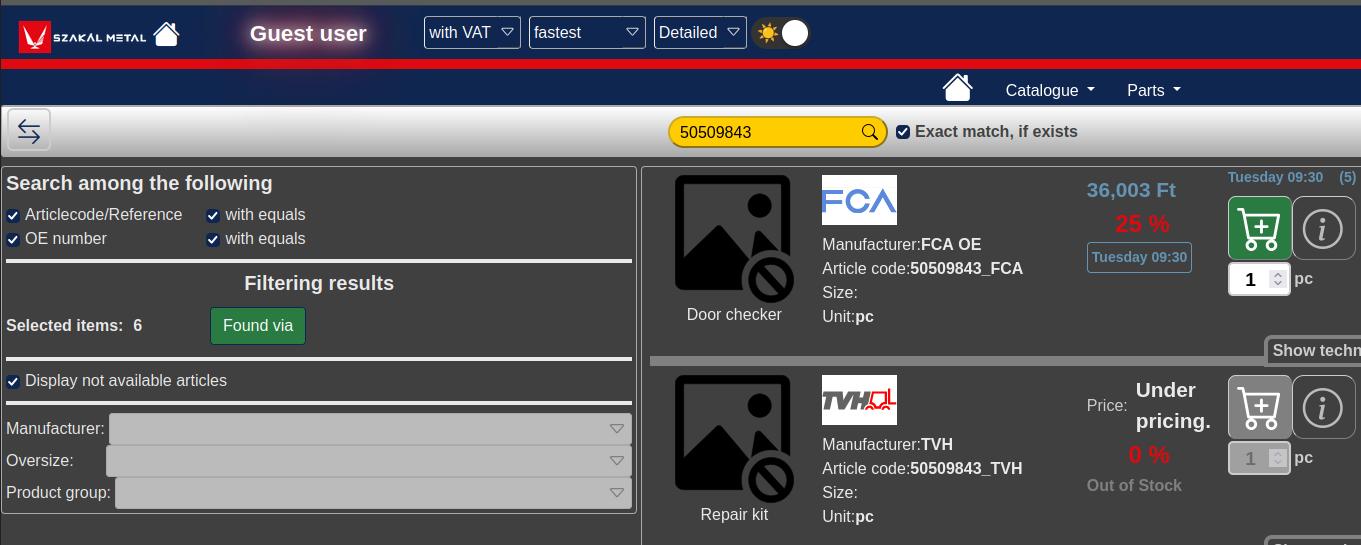
Once you have found and selected the right product, you can continue with "Adding Products to the Cart" (Chapter 3).
- Bookmark function:
The bookmark section is empty by default; once you have selected an item using the star icon, you will not need to search for it again later. Registered users can save up to 10 bookmarked items.

3. Adding Products to the Cart
Once you have reached the product selection step via the type, VIN, OE or item number search, registered users can add the product to the Szakál Met-Al webshop cart.
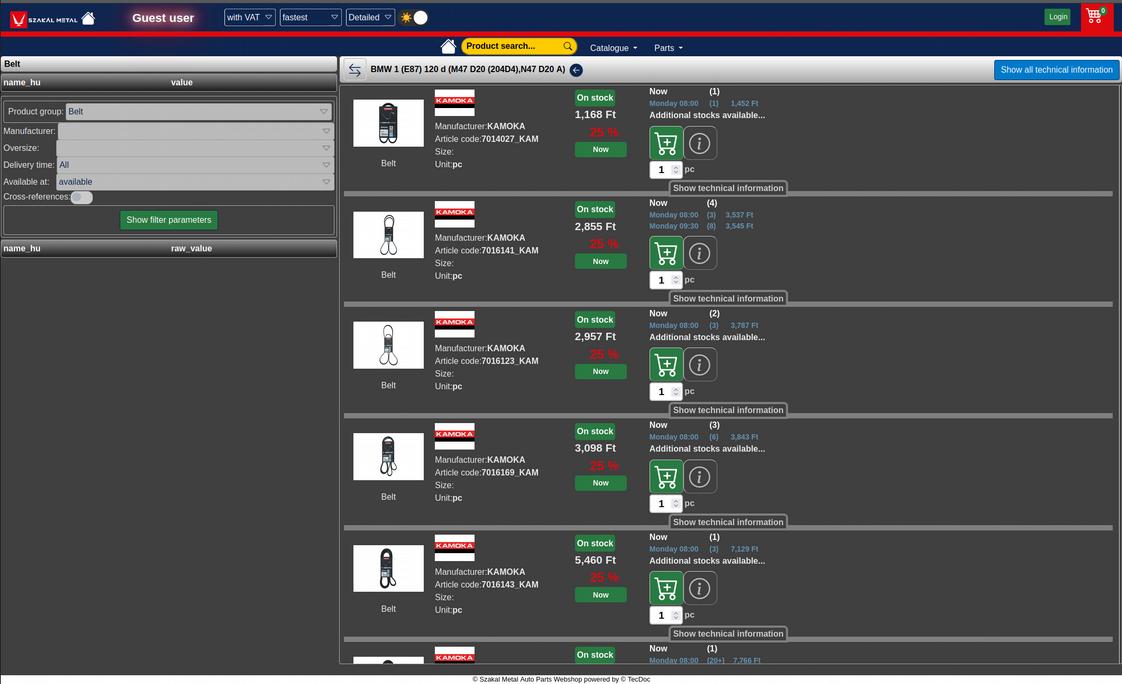
On the left (on mobile, after tapping a button in the bottom bar) you will find a search / filter panel where you can focus on the products that interest you. The left-right arrow (not available on mobile) hides or shows the filter panel. The arrow in a black circle after the type / model lets you choose parts for that vehicle from further product groups.
The car parts are listed one below the other; with the "Detailed" / "Simple" drop-down in the main menu you can control how much information you see at once – this is especially useful when a product has a much larger than usual list of options to choose from.
On the left of the list you will find the product image, which can be enlarged; if there are several images, you can switch between them. Next to it are the brand, item number, size and unit, with the product name below the image.
The middle column shows the price, the discount and the product's availability; further delivery times with prices are shown on the right. Here you can also view more information on the product data sheet using the ( i ) button, refresh stock information with the circular (360°) arrow, and add the specified quantity to the cart.
Please note that the product's unit is shown next to the quantity (piece, pair, pack, litre, etc.).
4. Placing an Order
Products can be selected from the online electronic catalogue either based on the vehicle type (VIN) or independently of it. The number of line items in your cart is shown by the small green number above the red cart icon in the main menu bar.
In the cart, the net and gross order total is shown in the top right corner (at the bottom on mobile), the items are in the middle, and at the bottom you will find the "Change shipping method/address", "Order selected products" and "Order products" buttons. Of the last two, "Order selected products" orders only the items ticked in the left-hand column, while "Order products" sends every item in the cart as an order.
You can save the contents of your cart to the cloud and load them back later (up / down icons). This is useful if you are not sure how urgent the order is but do not want to repeat the part selection process. In this case it is a good idea to save the cart with a descriptive note as a reminder, so you can find it again later – even weeks later. After loading it, we will immediately notify you of any changes since then (e.g. price changes), so you can still decide whether to order the loaded cart contents.
To delete items from the cart, tick them individually (small tick box on the left of each line), then use the "X" in a circle button. You can also add a note to the whole cart and print its contents. The circular (refresh) icon brings the cart up to date in a single click.
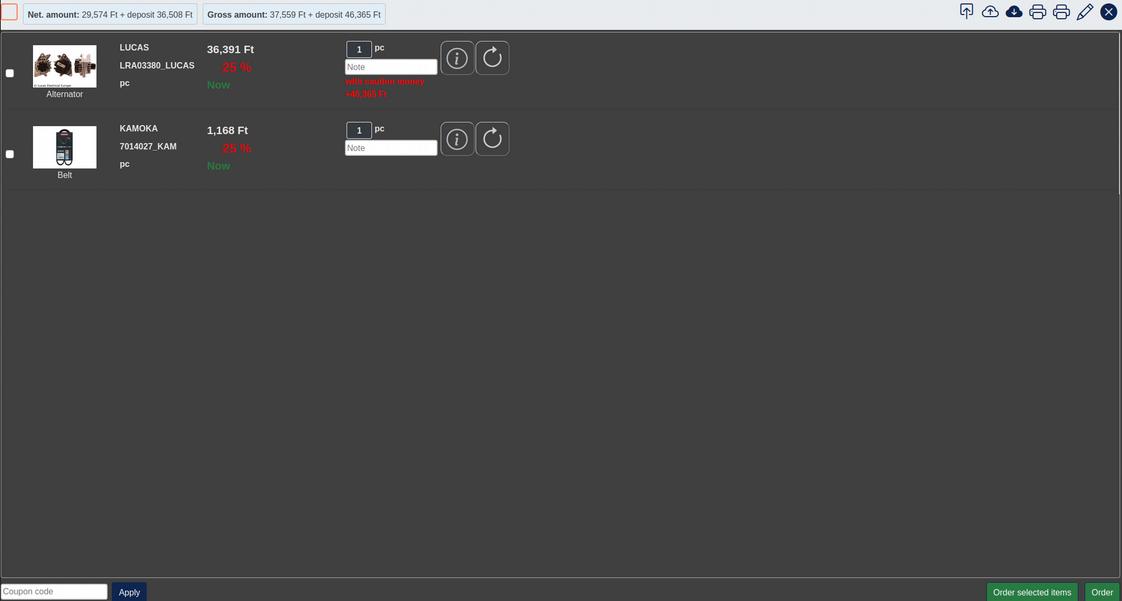
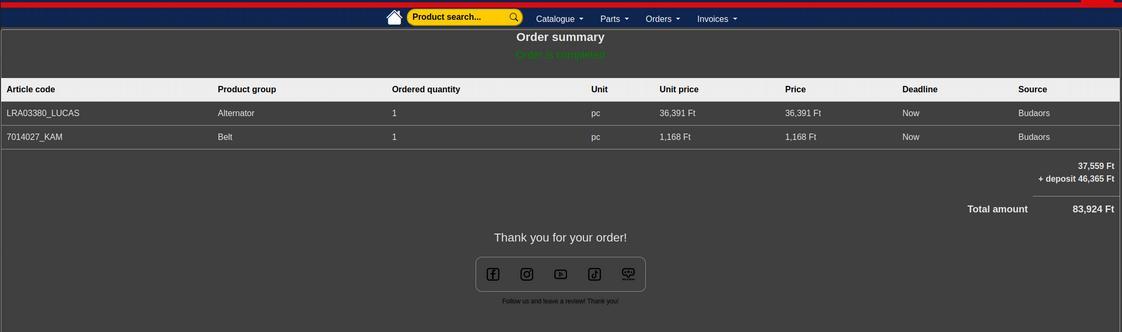
After a successful order you will receive a confirmation e-mail and an on-screen summary::
5. Cancelling an Order
As long as your order has not been invoiced, you can cancel it in person, by phone or electronically. To cancel electronically, use the "Order info" menu item under "Orders" in the main menu.
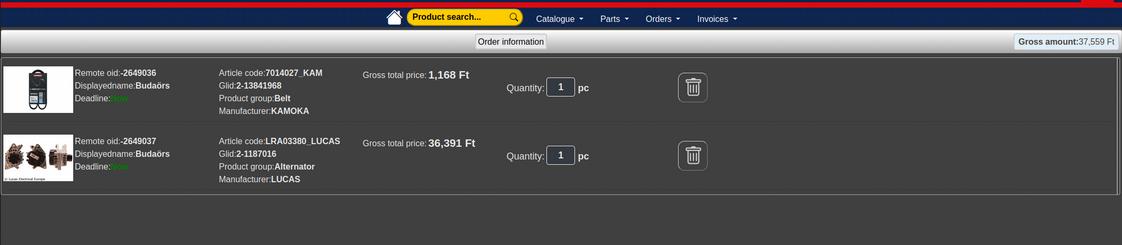
In the list of your orders, use the rubbish bin icon to delete, i.e. cancel, an order. You will not receive an e-mail about the cancellation, but you can check the status of your existing orders at any time using the "Order history" menu item mentioned above. Once your order has been invoiced, you can download your invoices from the "Invoices" menu.