


2. Selecting products
You can select products from the "Catalogue" menu based on the vehicle type (car, truck or motorcycle type / model) or by its VIN, or independently of these from the "Parts" menu – for example by item number or OE number, which you can type into the yellow input field.
Using "Catalogue" menu:
B. Search by Typer ( model )
- Cars

When searching for passenger cars by type ( model ), you can find the car relevant to you using all available vehicle parameters..
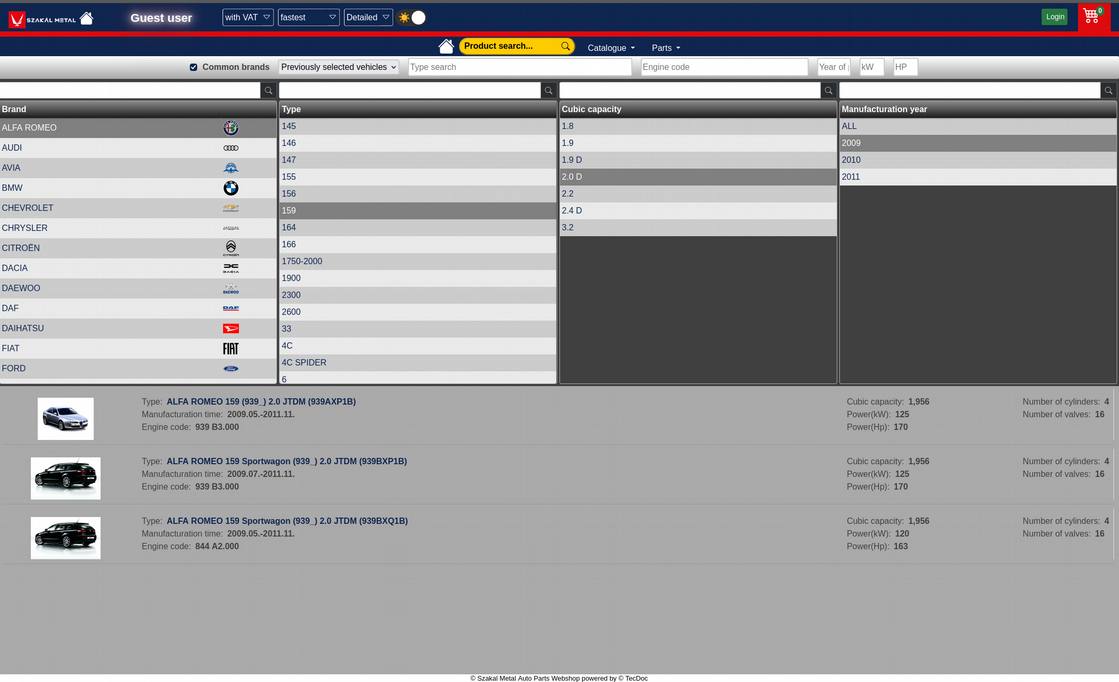
In addition to the classic Make, Type (model), Engine capacity (cc) and Year, you can narrow the search by typing into the "Type search" field, e.g. "STI" or "Fabia". You can also narrow it by engine code, e.g. "A5000", by year, or by power by entering "KW" or "HP" (horsepower). Narrowing is not required – it is an additional feature.
You can filter further using the input fields above the displayed lists (in the row with the magnifying glass icon) to make the search unambiguous. By unticking "Common models" you can browse even more – practically all – types / models. "Previously selected vehicles" is an automatically generated list of the vehicles you searched for most recently, so you can find them again easily later.
- Trucks,
For trucks, the same search options described above for cars are available.
- Motorcycles
For motorcycles, the same search options described above for cars are available.
C. Search by VIN
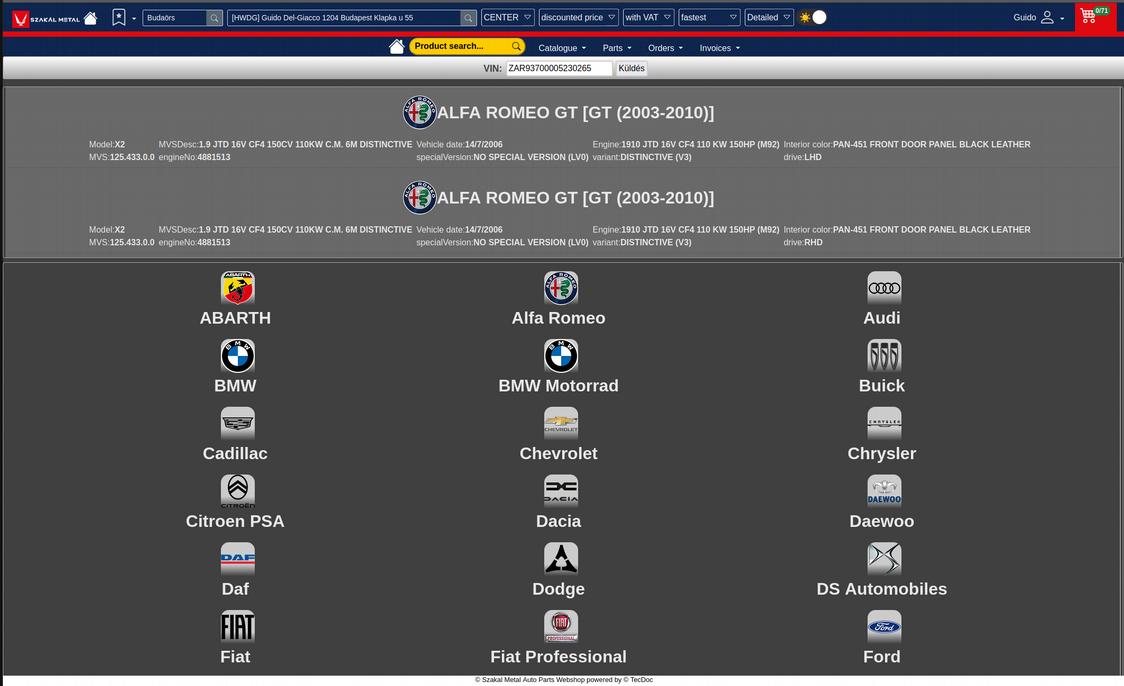
In the VIN search (a premium service available to registered users only) you can enter a specific VIN directly, e.g. "ZAR9370000523...", or choose from the type search system if you do not know the VIN of the vehicle
E. Selecting universal (non-vehicle-specific) products
Selecting universal products is like skipping the steps of the type / model search and starting directly at the product selection window, which looks like this:
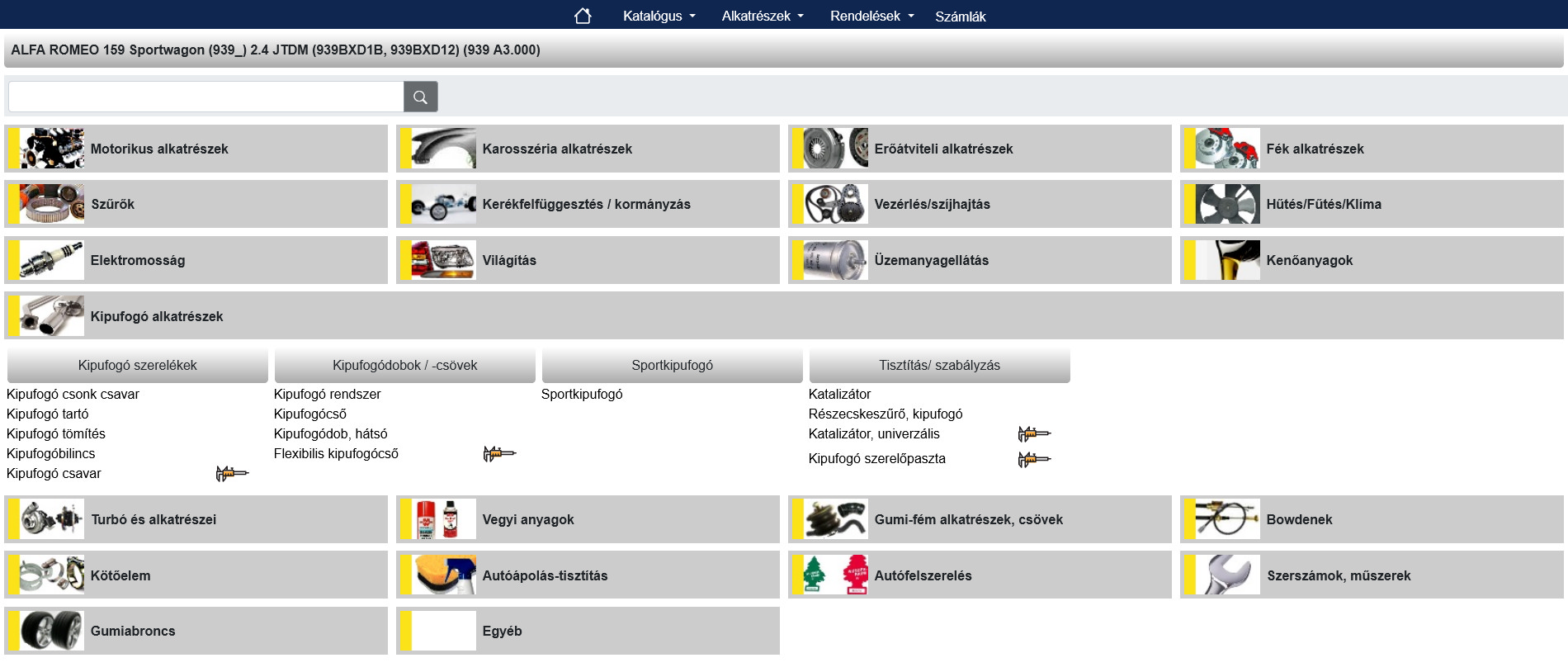
When choosing from the product groups, you can narrow the list straight away – though this is optional – using the input field in the top left corner, e.g. "Exhaust". A drop-down list will then show all products whose name contains "exhaust", ready to select. The product groups can be expanded and collapsed if you prefer to browse for car parts by category.
In some cases a caliper icon is shown: this means there is no direct link to the previously selected type / model, but a usable part may be found based on its dimensions – a pop-up window will inform you about this after you make your selection.
Next comes "Adding Products to the Cart" (Chapter 3)
Using "Parts" menu:
- Search by OE (Original Equipment) number, or item number
Type the OE (original) number or item number of the car part you are looking for into the yellow input field to find the product and its alternatives. Example: "50509843". You can then narrow the list of results further using the filters on the left.
The double-headed arrow button on the left changes the screen layout, and the blue "Show all technical information" button shows or hides all the data in the list that can help you make your decision.
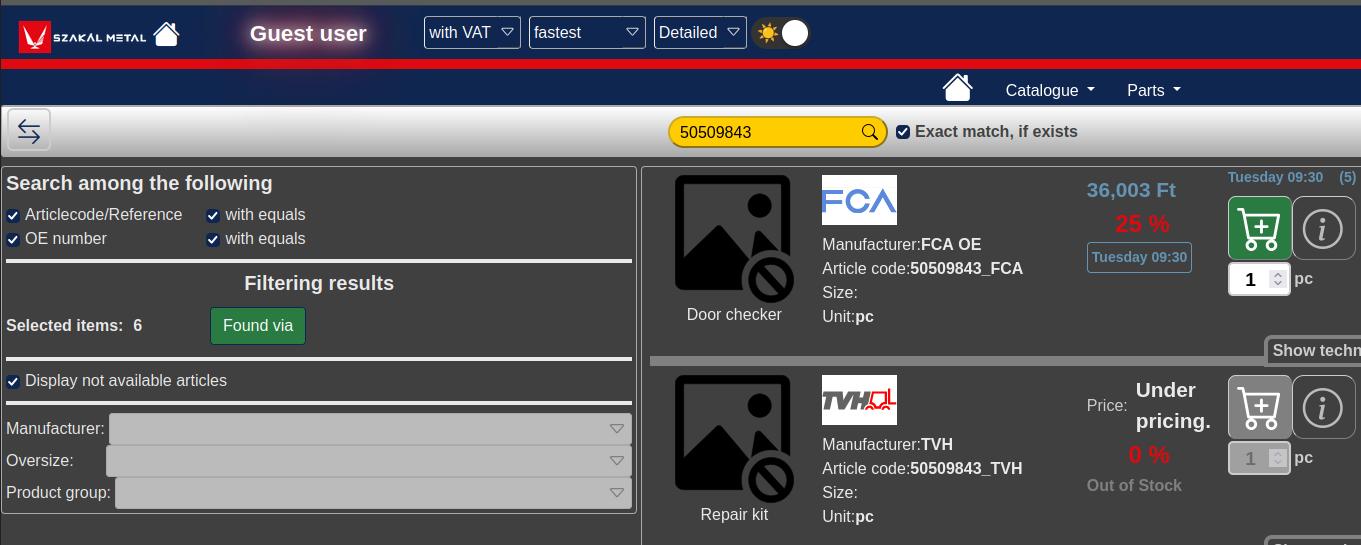
Once you have found and selected the right product, you can continue with "Adding Products to the Cart" (Chapter 3).
- Bookmark function:
The bookmark section is empty by default; once you have selected an item using the star icon, you will not need to search for it again later. Registered users can save up to 10 bookmarked items.